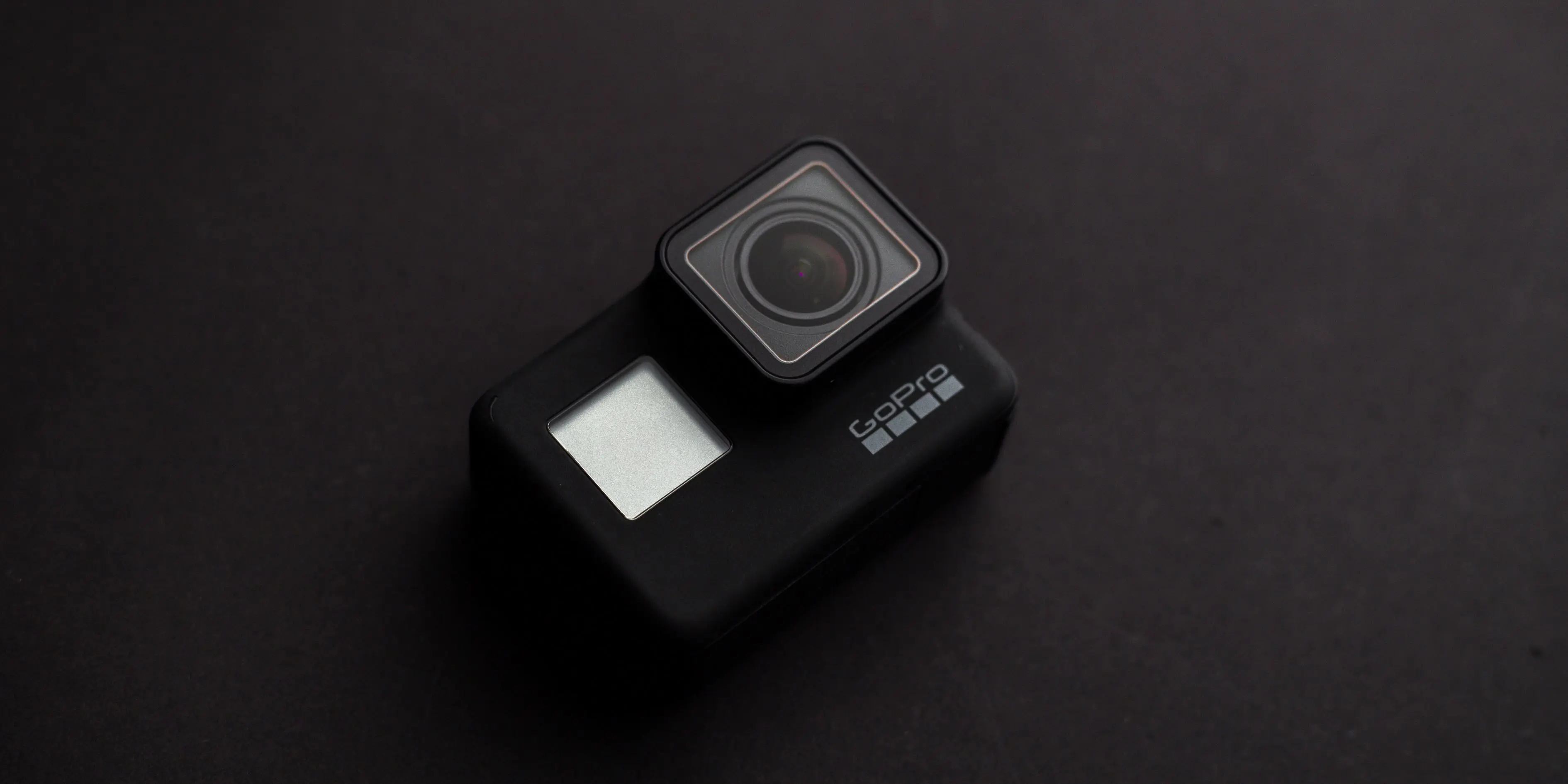
Using a GoPro as a webcam has gained popularity due to its superior video quality and wide-angle capabilities. If you’re wondering, “Can I use a GoPro as a webcam?“, the answer is yes! Whether you’re a professional seeking high-quality video conferencing or a casual user wanting to upgrade your streaming setup, the GoPro offers flexibility and top-notch performance.
This guide will show you how to use a GoPro as a webcam, whether you’re on a Mac, Windows 10, or Windows 11. You’ll also learn how to connect it efficiently for the best results. Let’s dive into the step-by-step process and requirements to unlock your GoPro’s potential as a webcam!
[ez-toc]Can I Use a GoPro as a Webcam?
Yes, you can! GoPro cameras are perfect for use as webcams thanks to their exceptional video quality and advanced features. With the right setup, you can turn your GoPro into a webcam for Zoom meetings, online gaming, or streaming on platforms like Twitch and YouTube.
To use a GoPro as a webcam, you’ll need:
- A compatible GoPro model (Hero 8 and newer are best).
- A USB cable or a media mod, depending on your setup.
- Webcam utility software provided by GoPro.

How to Use GoPro as Webcam?
Follow these steps to use your GoPro as a webcam:
- Download GoPro Webcam Utility
- Visit GoPro’s official website and download the GoPro Webcam Utility for your operating system (Windows or Mac).
- Connect Your GoPro
- Use a USB-C cable to connect your GoPro to your computer. For GoPro Hero models with a Media Mod, attach the mod for additional connectivity options.
- Set Your GoPro to Webcam Mode
- Turn on your GoPro and select “USB mode” when prompted. Ensure the device is in wide-angle video mode for the best frame coverage.
- Test the Webcam Setup
- Launch the webcam utility software and verify that the GoPro feed appears. If successful, your GoPro is now ready to function as a webcam.
GoPro as Webcam Mac
Setting up your GoPro as a webcam on Mac is straightforward. Here’s how:
- Install the GoPro Webcam App for macOS
- Go to the GoPro website, download the macOS version of the utility, and follow the installation prompts.
- Connect the Camera
- Use a USB cable to link your GoPro to your Mac.
- Access Webcam Features
- Once the app is installed, you’ll see the GoPro icon in your menu bar. Click it to preview your webcam feed.
- Select GoPro as Your Video Source
- Open video conferencing software like Zoom or Skype, and choose “GoPro” as your camera input.

Use GoPro as Webcam Windows 11
To use your GoPro as a webcam on Windows 11, follow these instructions:
- Install Webcam Utility Software
- Download and install the GoPro Webcam Utility for Windows.
- Connect Your GoPro to Your PC
- Plug your GoPro into your PC using a USB-C cable.
- Set Up in Video Software
- Open your preferred video conferencing or streaming application, and select the GoPro as your video source.
- Check Compatibility
- Ensure your GoPro is in webcam mode and that the software you’re using supports external camera inputs.
How to Use GoPro as Webcam Windows 10?
Using your GoPro as a webcam on Windows 10 is similar to Windows 11. Follow these steps:
- Download and Install the Webcam Utility
- Visit GoPro’s official site and get the software designed for Windows 10.
- Connect and Configure Your GoPro
- Attach your GoPro via a USB cable, and ensure it’s in webcam mode.
- Test the Connection
- Open the GoPro Webcam Utility and verify the live feed.
- Optimize Your Setup
- Adjust your GoPro’s resolution settings for better clarity during video calls or streams.
Wherever you are, using a GoPro as a webcam can enhance your streaming or conferencing experience. Whether you’re in New York, Los Angeles, or a small town, this guide will help you optimize your setup for any location. With the GoPro’s incredible features, your content or calls will stand out no matter your location.