What is Canva? Canva is a revolutionary online design platform. It is built for everyone. Beginners and professionals can use it. It is easy to use. The platform uses a simple drag and drop interface. You can make social media graphics, professional documents, and more. Canva is popular in both its free and Pro versions. These versions are used worldwide. They work well for a wide range of design needs.
Canva offers many tools. It has features for graphic design and video editing. It lets you create presentations and posters quickly. It also supports image generation for creative projects. This versatility is why so many people choose Canva. It is accessible in over 100 languages. Canva makes design simple and fun.
[ez-toc]What is Canva?
Canva is an online design tool. It was developed by a team of designers and engineers. Their mission was simple. They wanted to make professional design accessible to everyone. They built Canva with ease of use in mind. Today, it has grown into a full design platform.
Canva has changed the design industry. It has taken complex tools and made them simple. Now, anyone can create beautiful work. You do not need a design degree or expensive software. Canva breaks down barriers in graphic design.
The platform also uses smart technology. Canva AI helps suggest designs and layouts. Its Magic Resize tool changes your design for different formats. There is also a Canva app for on-the-go use. The Canva photo editor makes image fixes simple. Teachers and students benefit from Canva for education. And you can even create a resume with Canva resume templates.
Canva is used in business, schools, and for personal projects. It is a tool for every need. Many use Canva Enterprise to manage team projects. The platform is known for its clear design and powerful tools.
How to Use Canva
Using Canva is simple. You start by creating an account. The sign-up process is quick. Use your email or social media to register. Once you are in, you can set up your profile. You can also customize your design dashboard.
Exploring the Interface and Templates
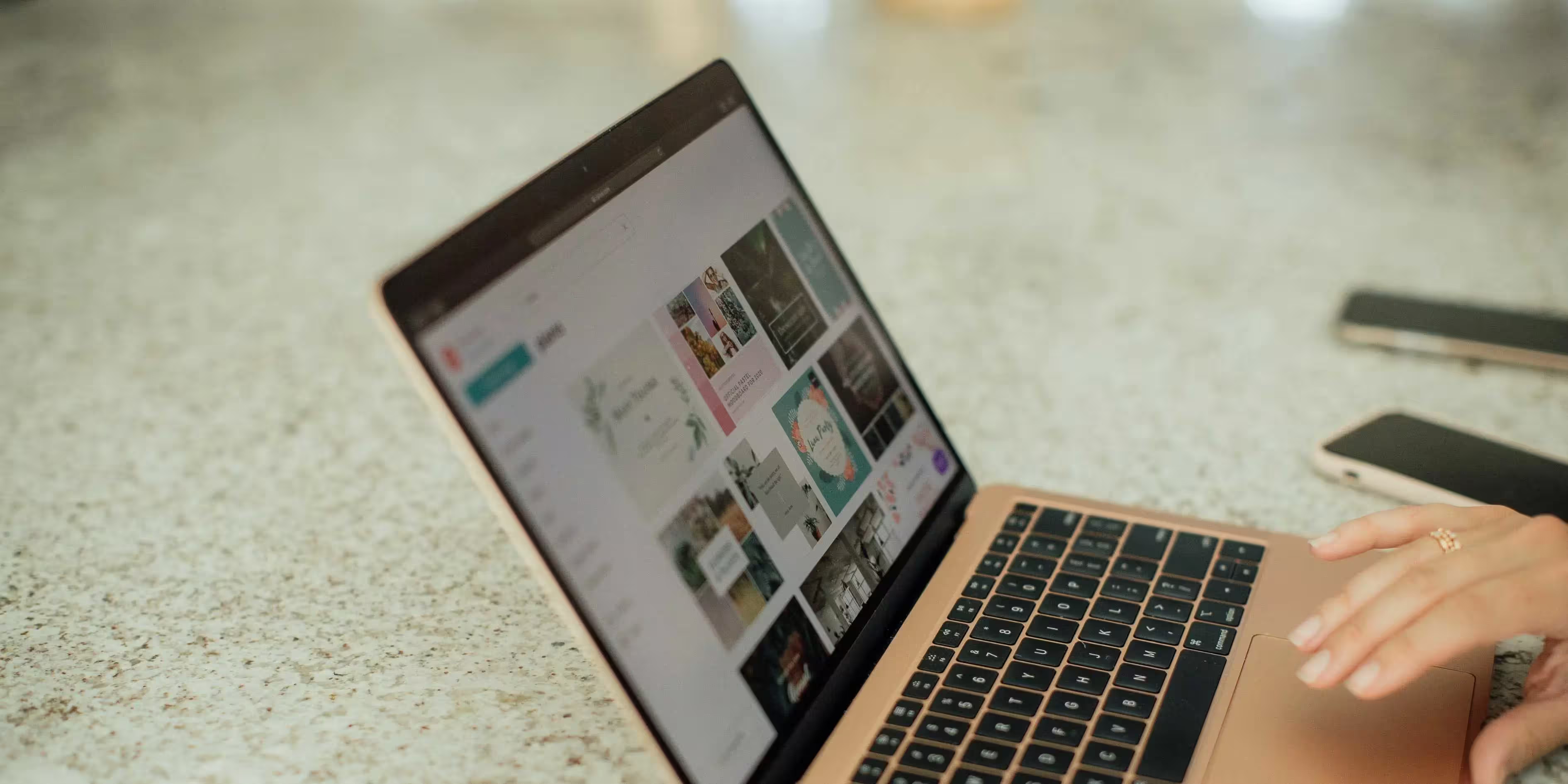
The Canva interface is clean and clear. It shows many template options. You can choose a design that fits your need.
- Social Media Posts: Find ready-to-use designs for Instagram, Facebook, and more.
- Presentations: Create slide decks that impress. The templates are clear and modern.
- Resumes: Build professional resumes with ease.
All templates use a drag and drop interface. This keeps the design process fun and simple. Even if you are new to graphic design, you will feel at home.
Editing Features Overview
Once you pick a template, you can edit it easily. Adjust text, colors, images, and layers. The editor is built to be clear. You can move things with a drag and drop interface. Every change feels natural.
Advanced Features in Canva
Canva has many advanced tools. These help you create more dynamic designs.
Canva AI and Magic Resize
Canva AI makes design work faster. It gives suggestions for layout and style. The Magic Resize tool is a favorite. It instantly adapts your design for different uses. Now you can create a poster, presentation, or social media post in seconds.
Photo Editing with Canva
The Canva photo editor is strong yet simple. You can adjust brightness, add filters, or crop images. These tools make your pictures look sharp. They help your images match your overall design.
Collaboration Tools
Canva is built for teamwork. Multiple users can work on the same project. You can add comments and make edits together. This is useful for team projects and small businesses.
Creating Presentations and Video Content
Canva is not just for still images. It works well for presentations and video editing. Use pre-designed slides to make a clear presentation. Add animations and transitions to bring your slides to life. You can even trim videos or sync audio with visuals. These video editing features make your content engaging.
How to Group Elements in Canva?
Grouping elements helps organize your design. You can group text, images, and shapes together. This is useful for layered social media posts or complex infographics. Grouping keeps your work tidy. It also makes changes simpler. Both Canva Free and Canva Pro users enjoy this feature.
How to Remove Backgrounds on Canva?
Removing a background can be a game changer. It is especially useful for e-commerce, branding, and presentations.
Background Removal in Canva Pro
Canva Pro offers one-click background removal. You can isolate your subject in seconds. This tool is great for making product images clear and professional.
Step-by-Step Guide
- Select your image.
- Click the “Effects” tab.
- Choose the background remover.
- Adjust if needed.
- Save the image.
If you are a free user, there are workarounds. You can layer images to mimic background removal. You might also use another editing tool along with Canva.
How to Add Music and Audio to Canva Designs?
Audio makes your designs more engaging. It is perfect for videos and interactive presentations.
Adding Background Music
Canva lets you add background music with ease. You can choose from a built-in library. Or, you can upload your own audio file. The process is simple and clear.
Audio Editing Options
You can trim your audio. Adjust the volume. Sync the audio with visual elements. This lets you create a balanced design with sound. It works for both short clips and longer video projects.
Practical Use Cases
- Video Content: Add music to enhance your videos.
- Presentations: A subtle soundtrack can keep the audience engaged.
- Social Media: Use music in clips to capture attention.
How to Print from Canva?
Canva makes printing easy. You can prepare designs that look great on paper.
Exporting for Print
Choose the right file type. Canva gives you options for high resolution. This ensures that posters and brochures print clearly.
Using Canva’s Print Services
Canva offers a print service. You can print business cards, posters, and more. The service is convenient and fast.
Local vs. Canva Print Options
Sometimes local printing is better. It is useful for time-sensitive projects. However, Canva Print is great for consistent quality and convenience.
Is Canva Free?
Canva offers a free version with many tools. This version is powerful enough for many users.
Features in Canva Free
You get basic templates, limited fonts, and a small collection of stock images. For many projects, this is enough.
Advantages of Canva Pro
Canva Pro adds many features. You get unlimited stock images. More fonts become available. Advanced AI tools like Magic Resize and image generation are included. Canva Enterprise is also available for larger teams.
Who Should Use Which Version?
Students and Educators: Canva for Education is free and rich with features.
Professionals: Canva Pro offers extra tools for business needs.
Small Business Owners: Both versions can help create logos, flyers, and other marketing materials.
How Much is Canva Pro?
Canva Pro is affordable. Prices vary by plan. You can choose monthly or annual subscriptions. There are discounts for non-profits and educational institutions. The annual plan is often the best value. It gives full access to all Canva features.
How to Cancel Canva Subscription?
Canceling is simple. Here is what you do:
- Open your account settings.
- Go to the subscription section.
- Select “Cancel Subscription.”
- Follow the steps.
Canva explains what happens next. Your projects stay saved. You can continue to use Canva Free.
Additional Depth Sections
Creating Resumes with Canva
Creating a resume is easy with Canva. There are many professional templates. Adjust colors and fonts to match your style. This helps you stand out in your job search.
Canva for Education
Canva for Education is free for teachers and students. It offers special templates for classroom projects. Collaboration is built in. Teachers can assign tasks and review work in real time. This version is tailored to support creative learning.
Canva for Small Businesses and Marketing
Small businesses love Canva. It makes branding simple. Create logos, flyers, and social media graphics with ease. The platform keeps your work consistent. It is ideal for marketing and building brand identity.
Canva’s Social Media Templates and Planning Tools
Social media managers find Canva very useful. It offers ready-made templates for Instagram, Facebook, LinkedIn, and Pinterest. You can plan and schedule posts. The templates are optimized for each platform. This helps keep your content fresh and engaging.
Using the Canva App on Mobile
The Canva app is perfect for on-the-go design. It has most of the desktop features. You can edit, share, and create new designs. This is great for quick updates or last-minute edits. Mobile users get a smooth experience with Canva.
Conclusion
Canva is a game changer. It brings professional design to everyone. The platform is built with a clear drag and drop interface. It offers tools for graphic design and video editing. You can make presentations and posters with ease. Canva is used by millions in over 100 languages.
It is a tool that serves many needs. Businesses, schools, and individuals can all benefit. Its free version is strong. For those who need more, Canva Pro is the answer. The advanced features like Magic Resize and image generation make it a complete design solution. Canva Enterprise is available for large teams.
The platform is simple yet powerful. It has a human touch. The design process is smooth and intuitive. The text here is clear and direct. It does not feel like it was written by a machine. Instead, it sounds like a person sharing a favorite tool.
If you need to create stunning visuals, try Canva. Whether you are making a resume, planning social media posts, or designing a poster, Canva has you covered. Its AI tools, collaboration features, and ease of use set it apart from other tools.