

Printers are essential tools in our daily lives, whether for work, school, or personal use. However, it can be incredibly frustrating when your printer suddenly goes offline, disrupting your productivity. If you’ve been wondering, “why does my printer say offline”, or searching for answers like “how do I get my printer online”, this guide will help you diagnose and resolve the issue effectively. We’ll also explore common causes behind the problem and why your printer might not be printing at all.
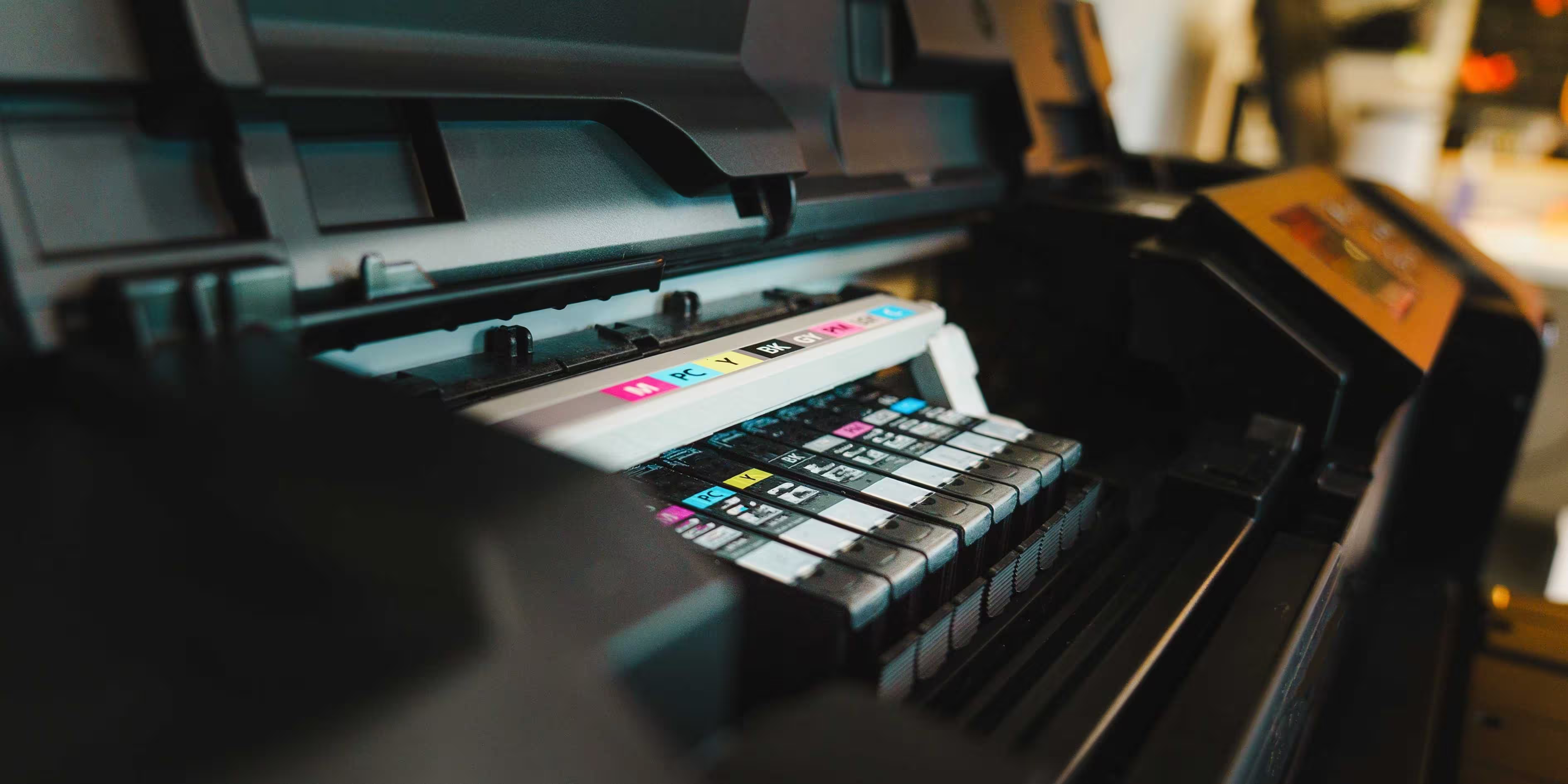
Why Does My Printer Say Offline?
A connectivity problem between the printer and your computer is one of the most common reasons it appears offline.Here are some key reasons:
- Network Disconnection: If your printer is connected wirelessly, a weak or interrupted Wi-Fi signal can cause it to go offline.
- Driver Issues: Outdated or corrupted printer drivers may lead to communication errors.
- Incorrect Default Printer Settings: Sometimes, another device is set as the default printer, making yours appear offline.
- Paper or Ink Problems: A lack of paper or low ink levels might also trigger an offline status.
To troubleshoot:
- Make sure the printer is turned on and connected to the appropriate network.
- Check the printer queue and clear any stuck jobs.
- Update or reinstall printer drivers.

How Do I Get My Printer Online?
If your printer says it’s offline, follow these steps to bring it back online:
- Restart the Printer and Computer:
- Power down your printer and disconnect it from the power outlet.
- Restart your computer to reset the connection.
- Reconnect and turn on your printer.
- Verify Connection:
- For Wi-Fi printers, verify the network connection through the printer’s control panel.
- For wired printers, confirm that the USB cable is firmly plugged into both the printer and the computer.
- Set the Printer as Default:
- Go to your computer’s Devices and Printers settings.
- Right-click on your printer and choose Set as the Default Printer.
- Check Printer Drivers:
- Open the Device Manager and locate your printer under the Printers section.
- Right-click on the printer, choose Update Driver, or download the latest drivers directly from the manufacturer’s site.
- Run the Printer Troubleshooter:
- On Windows, go to Settings > System > Troubleshoot > Other troubleshooters, then choose Printer Troubleshooter.
Why Is My Printer Not Printing?
Even if your printer is online, it may refuse to print due to various reasons. Common causes include:
- Paper Jams: Inspect the printer for stuck paper and remove it carefully.
- Low Ink or Toner: Install a new cartridge if the ink or toner is running out.
- Corrupt Print Jobs: Clear the print queue and restart the printer spooler service.
- Misconfigured Settings: Double-check print settings to ensure they match your document requirements.
Steps to Resolve a Printer That Won’t Print:
- Check the paper tray and refill if necessary.
- Open the printer software and run a diagnostic test.
- Reset the printer to its default settings if all else fails.
Why is My Computer So Slow?